
Make sure you completed all the steps in Blue screen or "No signal" on the projection. This article only covers the physical checks that come after.
Choose your model:
- Unö & Duö V2 (ladder and lift)
- Möve
- Höp
- Unö & Duö V1 (lift)
- Möbil
Not sure which model you have? Identify my model
Follow the steps for your model in order and note the result of each step.
Steps for Unö & Duö V2
What you need:
- A laptop with an HDMI output
- An HDMI cable that you know works
- A Phillips screwdriver
Part A: At the Heart (ladder required)
The Heart module is installed above the screen. It contains the computer.
Step 1: Make sure the computer is on
- Remove the screw identified by the yellow arrow. The cover is fixed with a steel cable, so you can let it hang in the air once you have removed the screw.
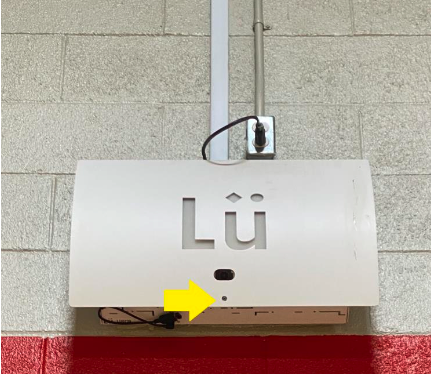
- Look at the light on the computer's power button, at the front of the computer.
Light on? The computer is on. Go to step 2.
No light? Make sure the computer power cable is securely connected, then press the power button and wait a few minutes. If the Lü image appears, you're done. If the computer starts but there is still no image, go to step 2. If the computer does not start, contact us.
Step 2: Check the HDMI connection at the computer
- Remove the three screws holding the LED panel to reach the back of the computer.
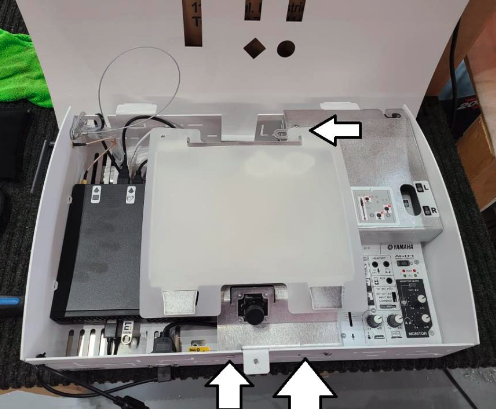
- Find the Lü HDMI cable at the back of the computer. Depending on your computer, it connects directly or through a small adapter.
- Disconnect the Lü HDMI cable, then reconnect it firmly. If there is an adapter, disconnect and reconnect it too.
Lü image displayed? You're done.
Still no image? Go to step 3.
Step 3: Test the HDMI cable and the projector with a laptop
- Disconnect the Lü HDMI cable from the computer (or from the adapter, if there is one).
- Connect the Lü HDMI cable to the laptop.
- Turn on the laptop.
Laptop image on the wall? The HDMI cable and the projector work: the problem comes from the computer or its adapter. Reconnect the Lü HDMI cable to the computer and go to step 6.
No image? The HDMI cable or the projector is faulty. Go to step 4.
Part B: At the projector (lift required)
Step 4: Check the HDMI connection at the projector
- Open the projector case to reach its connectors.
- Disconnect the Lü HDMI cable from the HDMI 1 port of the projector, then reconnect it firmly.
- If there is still no image, connect the Lü HDMI cable to the HDMI 2 port, then select HDMI 2 with the projector remote.
Lü image on HDMI 1? You're done.
Lü image on HDMI 2? Leave the cable on HDMI 2 and tell us in step 6: the HDMI 1 port may be faulty.
Still no image? Go to step 5.
Step 5: Test the projector with a laptop
- Disconnect the Lü HDMI cable from the projector.
- Connect the laptop directly to the HDMI 1 port of the projector with the HDMI cable that you know works.
- Turn on the laptop.
Laptop image on the wall? The Lü HDMI cable is faulty.
No image? The projector is faulty.
In both cases, go to step 6.
Step 6: Send us your results
Contact us with your results. We can then go straight to the solution.
Steps for Möve
On Möve, the computer and the projector are in the head. Checking them requires opening the head, which must be done by trained personnel only. Do not open the head yourself.
Step 1: Send us your results
Contact us and tell us whether the logo at the back of the head is lit and whether you can hear the projector fan.
Steps for Höp
Höp is the newest solution in the Lü ecosystem, and its help content is on the way. In the meantime, contact us: we will guide you step by step.
Steps for Unö & Duö V1
What you need:
- A laptop with an HDMI output
- An HDMI cable that you know works
The computer sits on top of the Light and Sound module, the large unit hung from the ceiling. You need a lift for all the steps.
Step 1: Make sure the computer is on
- Access the computer on top of the Light and Sound module. You may need to remove a ceiling tile.
- Look at the light on the computer's power button.
Light on? The computer is on. Go to step 2.
No light? Make sure the computer power cable is securely connected and the power strip is on, then press the power button and wait a few minutes. If the Lü image appears, you're done. If the computer starts but there is still no image, go to step 2. If the computer does not start, contact us.
Step 2: Check the HDMI connection at the computer
- Find the Lü HDMI cable on the computer. Depending on your computer, it connects directly or through a small adapter.
- Disconnect the Lü HDMI cable, then reconnect it firmly. If there is an adapter, disconnect and reconnect it too.
Lü image displayed? You're done.
Still no image? Go to step 3.
Step 3: Test the HDMI cable and the projector with a laptop
- Disconnect the Lü HDMI cable from the computer (or from the adapter, if there is one).
- Connect the Lü HDMI cable to the laptop.
- Turn on the laptop.
Laptop image on the wall? The HDMI cable and the projector work: the problem comes from the computer or its adapter. Reconnect the Lü HDMI cable to the computer and go to step 6.
No image? The HDMI cable or the projector is faulty. Go to step 4.
Step 4: Check the HDMI connection at the projector
- Open the projector case to reach its connectors.
- Disconnect the Lü HDMI cable from the HDMI 1 port of the projector, then reconnect it firmly.
- If there is still no image, connect the Lü HDMI cable to the HDMI 2 port, then select HDMI 2 with the projector remote.
Lü image on HDMI 1? You're done.
Lü image on HDMI 2? Leave the cable on HDMI 2 and tell us in step 6: the HDMI 1 port may be faulty.
Still no image? Go to step 5.
Step 5: Test the projector with a laptop
- Disconnect the Lü HDMI cable from the projector.
- Connect the laptop directly to the HDMI 1 port of the projector with the HDMI cable that you know works.
- Turn on the laptop.
Laptop image on the wall? The Lü HDMI cable is faulty.
No image? The projector is faulty.
In both cases, go to step 6.
Step 6: Send us your results
Contact us with your results. We can then go straight to the solution.
Steps for Möbil
What you need:
- A laptop with an HDMI output
On Möbil, the computer is behind the back cover of the head.
Step 1: Make sure the computer is on
- Lower the head with the crank.
- Remove the back cover of the head (6 screws).
- Look at the light on the computer's power button.
Light on? The computer is on. Go to step 2.
No light? Make sure the computer power cable is securely connected, then press the power button and wait a few minutes. If the Lü image appears, you're done. If the computer starts but there is still no image, go to step 2. If the computer does not start, contact us.
Step 2: Check the HDMI connection at the computer
- Find the Lü HDMI cable on the computer. Depending on your computer, it connects directly or through a small adapter.
- Disconnect the Lü HDMI cable, then reconnect it firmly. If there is an adapter, disconnect and reconnect it too.
Lü image displayed? You're done.
Still no image? Go to step 3.
Step 3: Test the HDMI cable and the projector with a laptop
- Disconnect the Lü HDMI cable from the computer (or from the adapter, if there is one).
- Connect the Lü HDMI cable to the laptop.
- Turn on the laptop.
Laptop image on the wall? The HDMI cable and the projector work: the problem comes from the computer or its adapter.
No image? The HDMI cable or the projector is faulty. They are under the top cover of the head, which must be opened by trained personnel only. Do not open it yourself.
In both cases, reconnect the Lü HDMI cable to the computer and go to step 4.
Step 4: Send us your results
Contact us with your results. We can then go straight to the solution.
If the problem persists, contact us
Fill out the contact form and include:
- Your Lü serial number (LU####) (how to find it)
- Your model
- The steps you tried and the result of each
- The exact error message, if any
- A photo or video of the problem