
Regularly updating drivers and the BIOS helps ensure that your computer runs smoothly, remains secure, and takes full advantage of the latest hardware and software advancements.
Here's how you can update them:
Lü Application Updates
-
Open the Lü application
- Navigate to the Settings
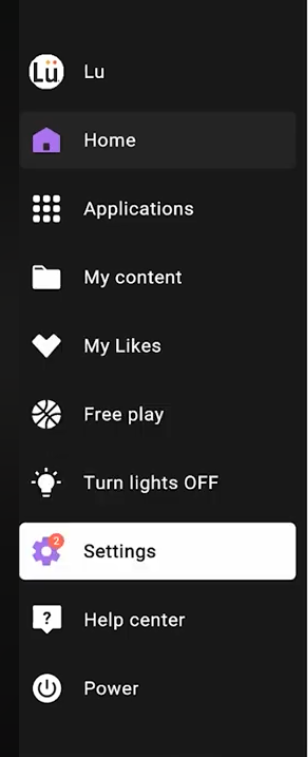
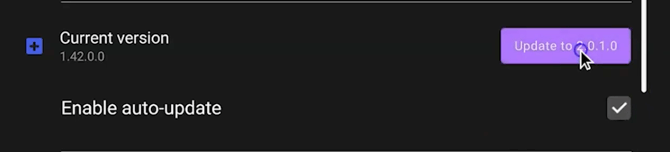
If you are experiencing issues updating the Lü application, please refer to this article.
Windows Updates
Windows 10
- Select Start
 , go to Settings
  > Update & Security
  > Windows Update > select Check for Windows updates.
 - If any updates are available for you, select Download & install. Your device will download and install the updates. If prompted to do so, restart your device to apply the updates.
Windows 11
- Select Start
 > Settings
 > Windows Update
  > select Check for Windows updates.
 - If any updates are available for you, select Download & install. Your device will download and install the updates. If prompted to do so, restart your device to apply the updates.
- Other updates: Select Start > Settings > Windows Update > Advanced options > Optional Updates. Select all the updates and click on "Download & Install". If prompted to do so, restart your device to apply the updates.
Bios Updates (Dell drivers)
This guide explains how to update your Dell computer's drivers using the official Dell website and the Dell Support Assistant tool.
1. Access the Dell Download Page
- Open a browser and go to Google.com.
- In the search bar, type Dell driver update.
- Click on the result titled Drivers & Downloads (official Dell website).
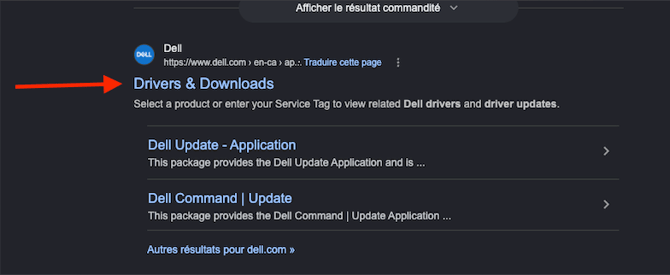
- On the Dell page, accept the permissions requested by the site.
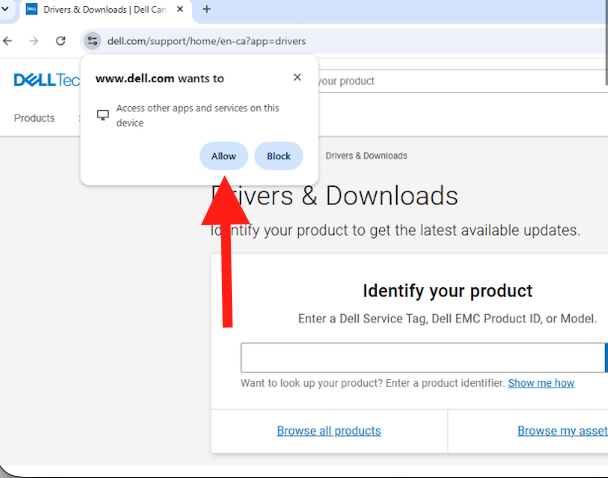
If your computer is detected after accepting the permissions requested by the site, please proceed to step 3.
2. Install Dell Support Assistant (if required)
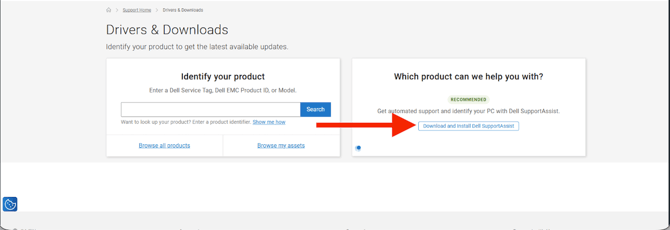
If your computer model does not appear automatically in the box on the right:
- Click the link to download Dell Support Assistant.
- Once the file is downloaded, open File Explorer and navigate to the Downloads folder.
(To access the Desktop from the remote keyboard, press Win + D.)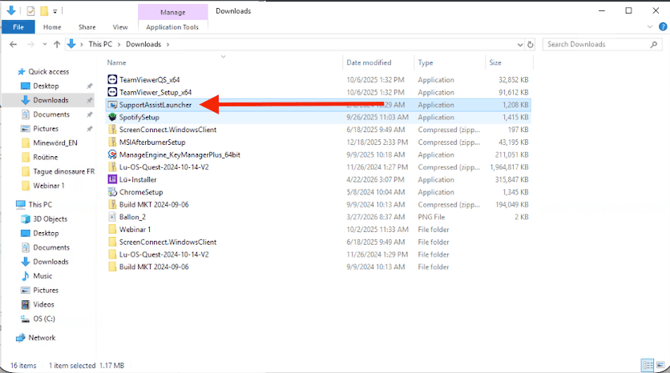
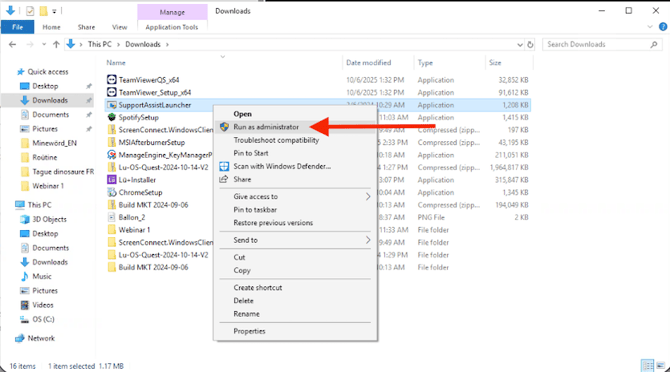
- Right-click the file "SupportAssistLauncher" and select Run as administrator.
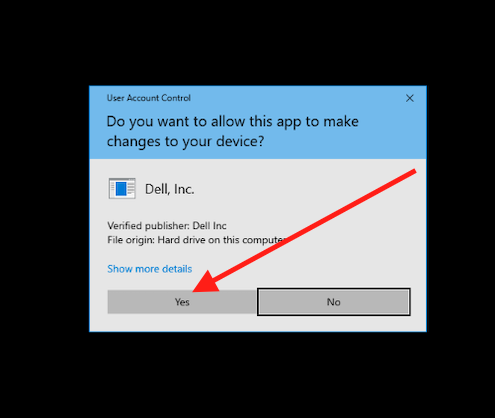
- Accept the system modification request.
- An installation window will appear. Wait for it to close automatically.
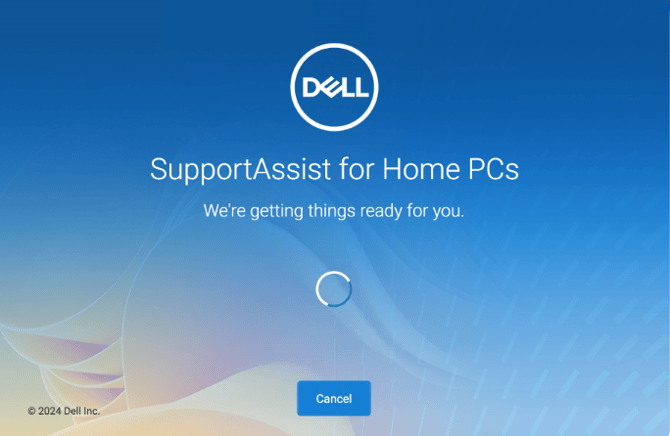
3. Detect Your Computer and Start the Update
- Go back to the Dell page in your browser and reload the page.
Your computer model should now appear automatically.
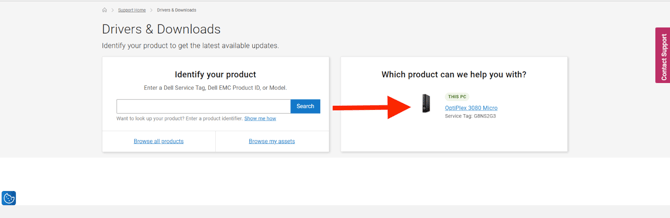
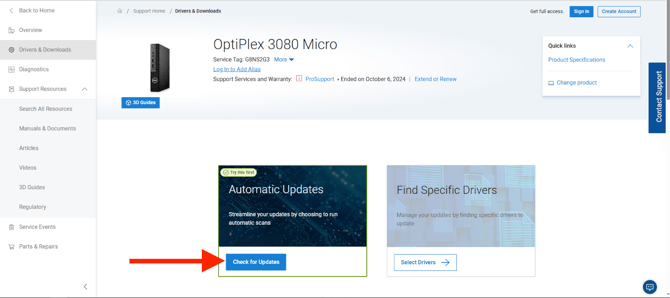
- Click on your computer model name.
- Click Check for Updates.
- Wait for the scan to complete (a progress bar will be displayed).
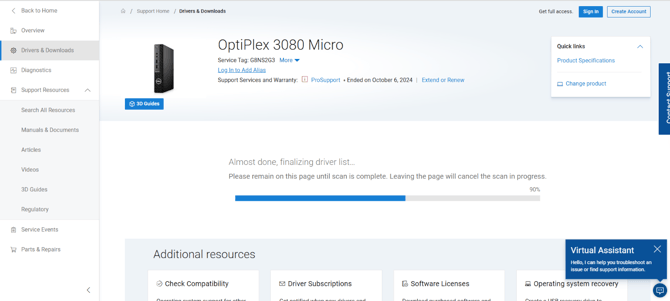
4. Download and Install Updates
- A list of available updates will appear.
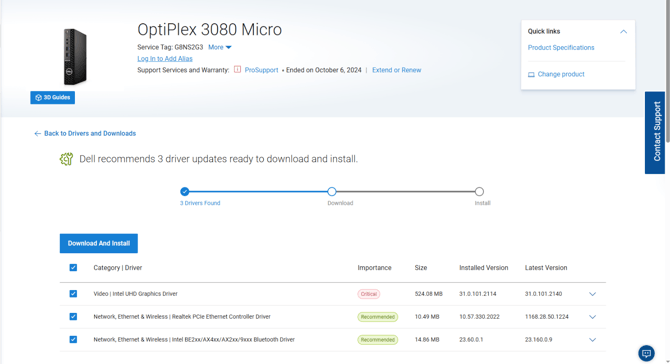
- Click Download and Install.
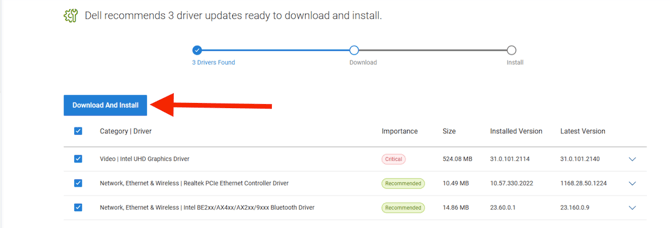
- Follow the on-screen instructions for each item:
- Restart: restart your computer to finalize the update.
- Installed: Item is installed. No further action is required.
Still have questions? Contact us!